> For the complete documentation index, see [llms.txt](https://cleyrop.gitbook.io/docs/llms.txt). Markdown versions of documentation pages are available by appending `.md` to page URLs; this page is available as [Markdown](https://cleyrop.gitbook.io/docs/v4.7-en/data-governance/sources-de-donnees.md).

# Data Sources

Data sources bring together all entry and exit points used to feed the Cleyrop platform.

Data sources make it possible to ingest, synchronize, and expose data securely, while ensuring traceability and access governance.

There are two main families:

1. The **external datasources,** which make it possible to directly connect data systems (SQL, S3, API, Snowflake, SharePoint, etc.).
2. The **Repositories** : secure SFTP servers used for file exchanges with external partners.

***

## External datasources

A Datasource is an object representing an external data source.

It contains all the information needed to connect to this source and retrieve the data into a Cleyrop Dataset.

Each datasource uses a specific connector, suited to the source type.

### Creating a datasource

Adding a datasource follows the same process regardless of the connector. From the Data Sources > Datasource menu:

1. Click **Create**
2. Select the connector type
3. Enter the required **connection information** (URL, credentials, keys, etc.)
4. **Test** the connection
5. Enter the metadata: name, description, **sensitivity**

A summary page is then available for each datasource:

* connection settings,
* list of imported datasets,
* connectivity status.

{% hint style="success" %}
For each data source, we recommend creating a dedicated service account with the minimum required permissions.
{% endhint %}

### Connection settings by connector type

#### 🗄️ Relational databases

Find below the settings to enter to configure an Oracle / PostgreSQL / Microsoft SQL / MySQL datasource.

<figure><img src="https://4159280578-files.gitbook.io/~/files/v0/b/gitbook-x-prod.appspot.com/o/spaces%2FMHNFH6aA4j5ucH4XFBXy%2Fuploads%2Fgit-blob-b9ea93f84ce29f5952a2b081812218e18c16bae2%2Fimage.png?alt=media" alt=""><figcaption></figcaption></figure>

**Required fields**

<table><thead><tr><th width="157.328125">Field</th><th width="264.0703125">Description</th><th>Example</th></tr></thead><tbody><tr><td><strong>Host</strong></td><td>Domain name or IP address of the database server.<br></td><td><code>db.mydomain.com</code> or <code>192.168.1.10</code><br>⚠️ <em>Do not include a protocol (e.g.: <code>jdbc:</code>) or a port.</em></td></tr><tr><td><strong>Port</strong></td><td>Network port used by the database. Pre-filled according to the connector.</td><td>Oracle: 1521<br>PostgreSQL: 5432<br>SQL Server: 1433<br>MySQL: 3306</td></tr><tr><td><strong>Database / SID / Service name</strong></td><td>Name of the target database (or SID for Oracle).</td><td><code>production_db</code></td></tr><tr><td><strong>Username</strong></td><td>Account with read access (recommended: dedicated account).</td><td><code>cleyrop_reader</code></td></tr><tr><td><strong>Password</strong></td><td>Associated password.</td><td>—</td></tr></tbody></table>

**Best practices and points of attention**

* Make sure the server allows connections from Cleyrop's IP (firewall / security group).
* For Oracle, the field **Host** must include the SID or the Service Name if your instance requires it (e.g.: `myserver.com/ORCL`).
* SQL Server may require the instance name (`host\instance`).
* If the connection fails: check whether SSL/TLS is required or not.

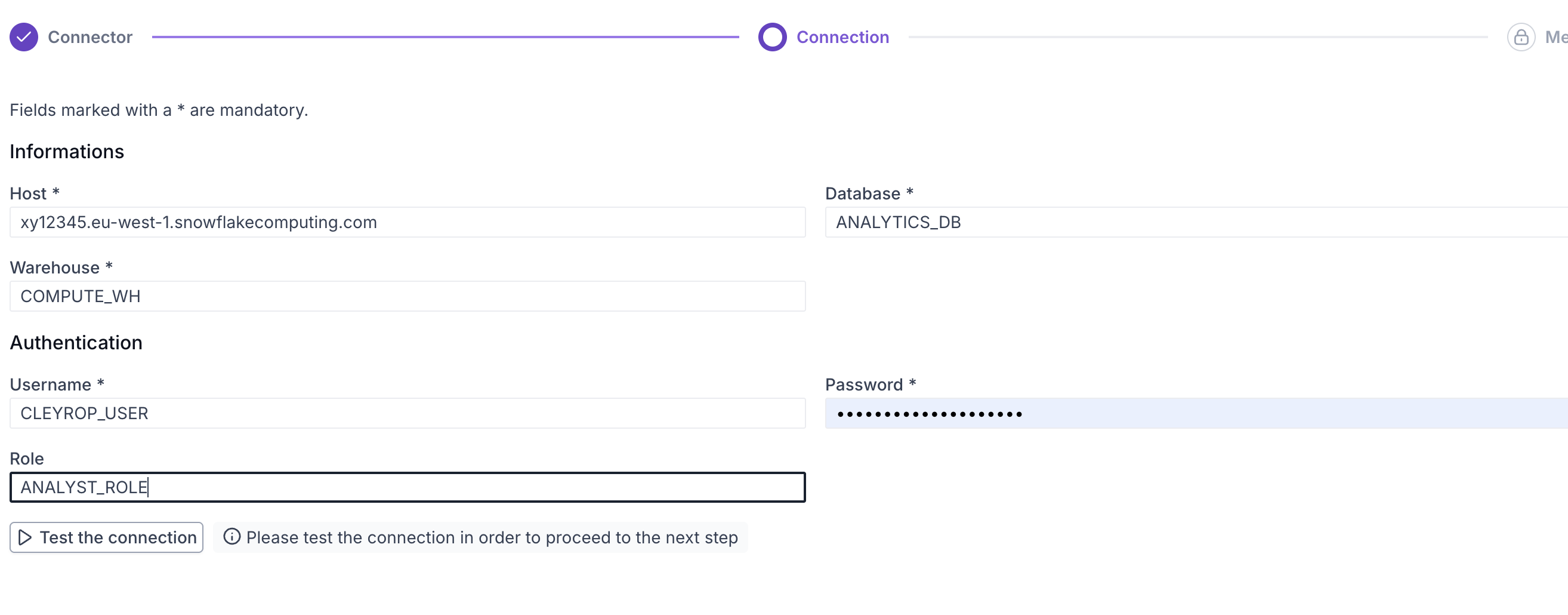
#### ❄️ Snowflake

<figure><img src="https://4159280578-files.gitbook.io/~/files/v0/b/gitbook-x-prod.appspot.com/o/spaces%2FMHNFH6aA4j5ucH4XFBXy%2Fuploads%2Fgit-blob-c73f5241ce572a16dd74f55711f7eaf65d171110%2Fimage.png?alt=media" alt=""><figcaption></figcaption></figure>

<table><thead><tr><th width="166.28125">Field</th><th width="315.19140625">Description</th><th>Example</th></tr></thead><tbody><tr><td><strong>Host</strong></td><td>Snowflake instance address in the format (without https://): <code>[account].snowflakecomputing.com</code></td><td><code>xy12345.snowflakecomputing.com</code></td></tr><tr><td><strong>Warehouse</strong></td><td>Compute warehouse used to run queries.</td><td><code>COMPUTE_WH</code></td></tr><tr><td><strong>Database</strong></td><td>Target database.</td><td><code>ANALYTICS_DB</code></td></tr><tr><td><strong>Username</strong></td><td>Service account.</td><td><code>CLEYROP_USER</code></td></tr><tr><td><strong>Password</strong></td><td>Password or private key.</td><td>—</td></tr><tr><td><strong>Role (optional)</strong></td><td>Snowflake role to use.</td><td><code>ANALYST_ROLE</code></td></tr></tbody></table>

**Best practices and points of attention**

* Use a dedicated role with:
  * `USAGE` on warehouse
  * `USAGE` on database & schema
  * `SELECT` on tables
* If no role is specified, the default role is used (often a source of access errors).
* Find your host in your account details: Account/Server URL

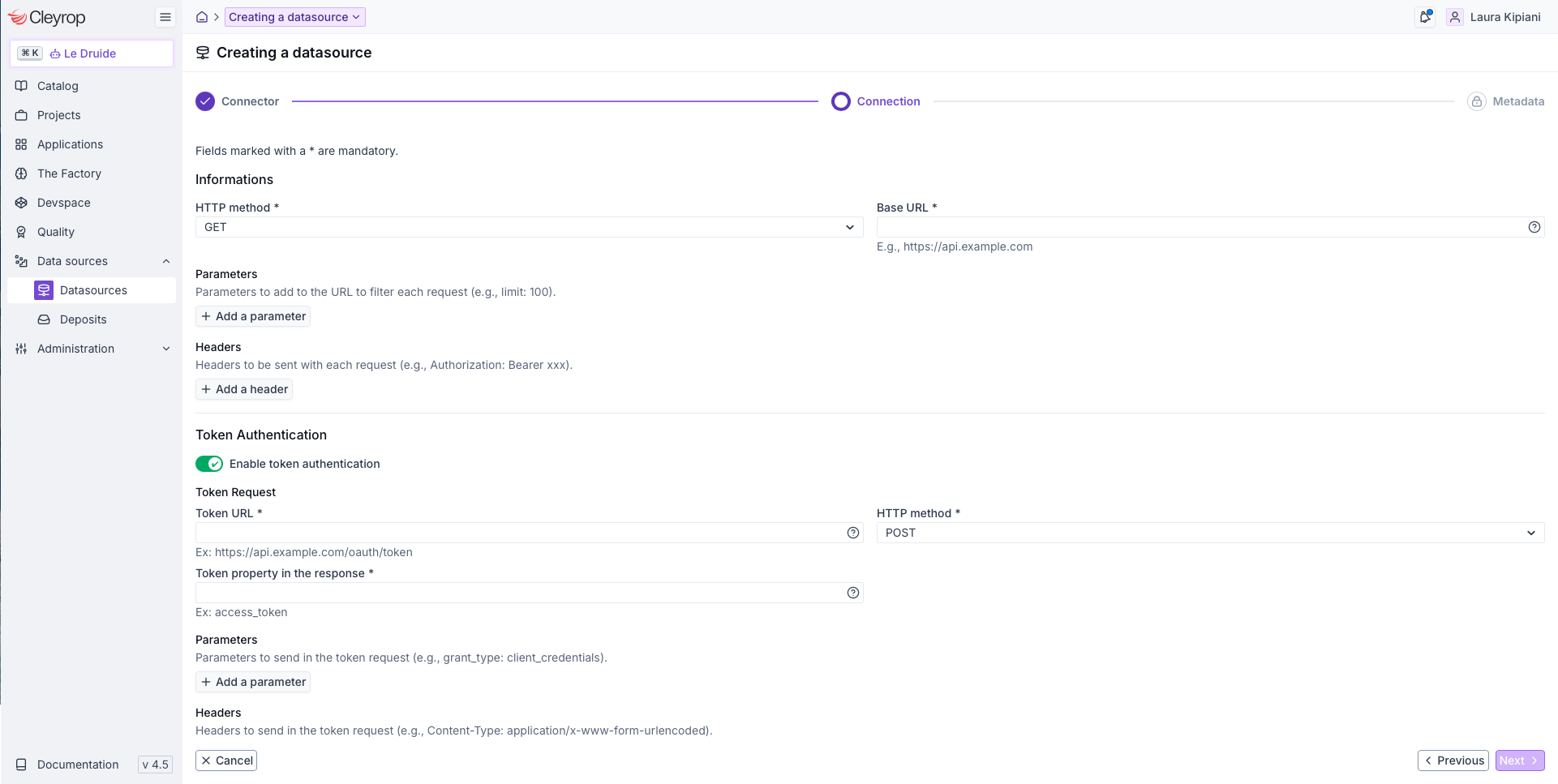
#### 🔌 **API**

<figure><img src="https://4159280578-files.gitbook.io/~/files/v0/b/gitbook-x-prod.appspot.com/o/spaces%2FMHNFH6aA4j5ucH4XFBXy%2Fuploads%2Fgit-blob-167f530cec77deaf7b581d124cc823adb54e7db3%2Fimage.png?alt=media" alt=""><figcaption></figcaption></figure>

**Fields**

| Field                         | Description                                                                  | Example                     |
| ----------------------------- | ---------------------------------------------------------------------------- | --------------------------- |
| **Base URL**                  | Root URL of the API (without a specific endpoint).                           | `https://api.mydomain.com`  |
| **Endpoint (URL end)**        | Path used to test the connection.                                            | `/v1/users`                 |
| **Parameters (Query Params)** | Parameters added to the URL to filter or refine the request.                 | `?limit=100&status=active`  |
| **Headers**                   | Technical information sent with each request (authentication, format, etc.). | `Authorization: Bearer xxx` |

{% hint style="info" %}
Parameters and headers are optional but may be required if your API needs authentication or specific filters.
{% endhint %}

**HTTP methods**

The API connector supports several HTTP methods:

<table><thead><tr><th width="224.92578125">Method</th><th>Use</th></tr></thead><tbody><tr><td><strong>GET</strong></td><td>Retrieve data (default behavior)</td></tr><tr><td><strong>POST</strong></td><td>Send data in the request body</td></tr><tr><td><strong>PUT</strong></td><td>Update a complete resource</td></tr><tr><td><strong>PATCH</strong></td><td>Partially update a resource</td></tr></tbody></table>

For POST, PUT and PATCH methods, a **request body** can be configured as key/value pairs (JSON format).

{% hint style="info" %}
Parameters defined in the Datasource can be overridden at the Dataset level. The Dataset value then takes precedence over the Datasource value.
{% endhint %}

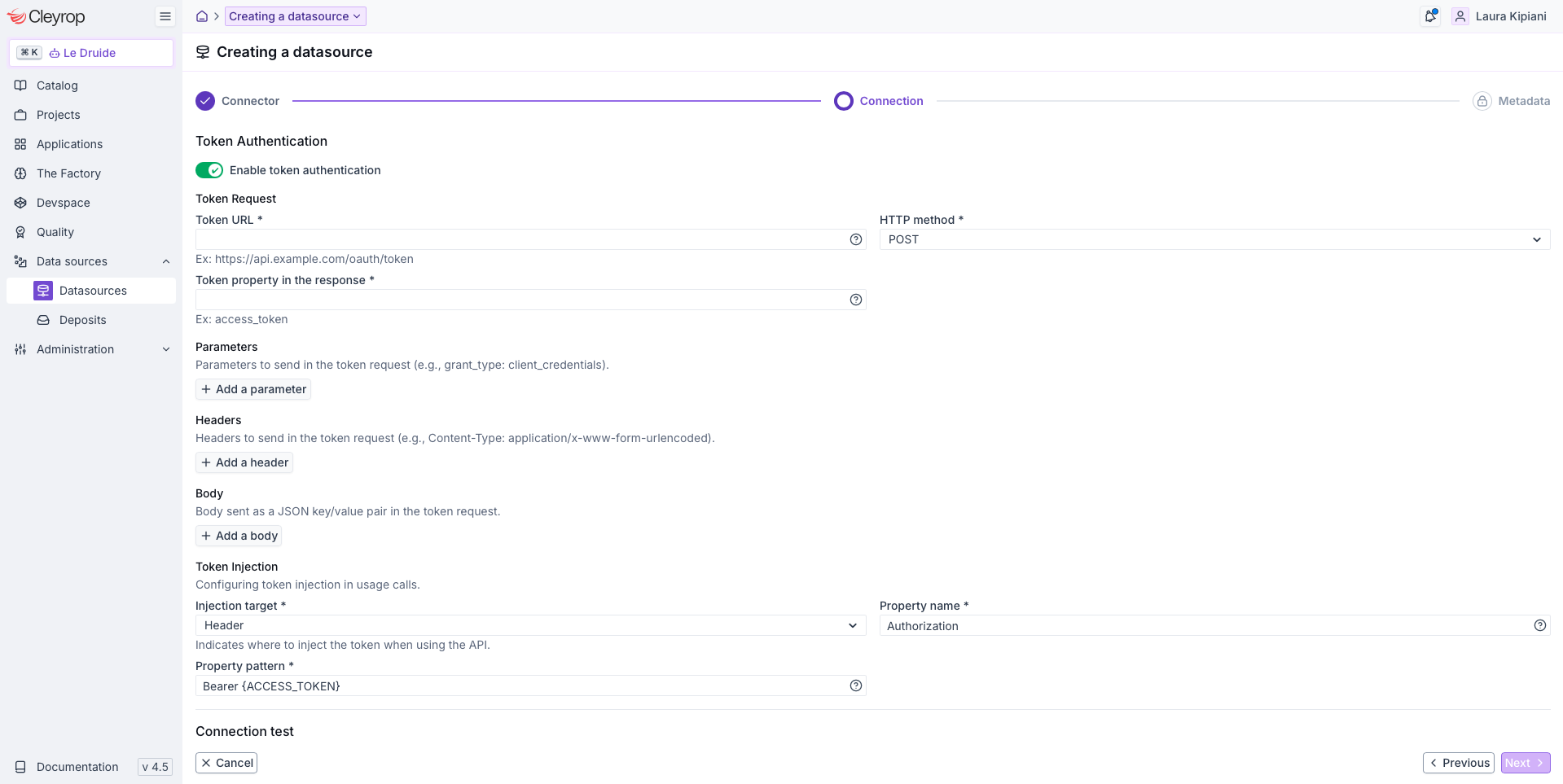
**Token-based authentication**

If your API requires token-based authentication, enable the option **Enable token authentication** in the dedicated section.

<figure><img src="https://4159280578-files.gitbook.io/~/files/v0/b/gitbook-x-prod.appspot.com/o/spaces%2FMHNFH6aA4j5ucH4XFBXy%2Fuploads%2Fgit-blob-e44da103109c8bed6aeda0b394afab882cd8f4a3%2Fimage.png?alt=media" alt=""><figcaption></figcaption></figure>

**Token request:**

| Field                              | Description                                                 | Example                               |
| ---------------------------------- | ----------------------------------------------------------- | ------------------------------------- |
| **Token URL**                      | Authentication endpoint URL                                 | `https://api.example.com/oauth/token` |
| **HTTP method**                    | Method used to retrieve the token                           | `POST`                                |
| **Token property in the response** | Name of the field containing the token in the JSON response | `access_token`                        |

You can also configure:

* **Parameters** : parameters to send in the token request (e.g.: `grant_type: client_credentials`)
* **Headers** : headers to send in the token request (e.g.: `Content-Type: application/x-www-form-urlencoded`)
* **Body** : JSON key/value pairs to send in the token request body

**Token injection:**

Once retrieved, the token is automatically injected into API calls. Configure:

| Field                | Description                              | Example                 |
| -------------------- | ---------------------------------------- | ----------------------- |
| **Injection target** | Where to inject the token in the request | `Header`                |
| **Property name**    | Target header or parameter name          | `Authorization`         |
| **Property pattern** | Token injection format                   | `Bearer {ACCESS_TOKEN}` |

{% hint style="info" %}
The token is automatically retrieved before each collection and injected into calls according to the configured settings.
{% endhint %}

#### 🔌 **Business Central**

**Prerequisites:**

* Have an application registered in **Microsoft Entra ID** (Azure AD), with:
  * permissions **Application** *Dynamics 365 Business Central* (`API.ReadWrite.All`)
  * admin consent granted
  * a generated client secret

**Fields**

<table><thead><tr><th width="202.33984375">Field</th><th>Description</th></tr></thead><tbody><tr><td><strong>Environment</strong></td><td>Name of your Business Central environment as configured in the Business Central administration center.</td></tr><tr><td><strong>Tenant ID</strong></td><td>Azure AD directory (tenant) ID, available in Azure Portal > Azure Active Directory > Overview.</td></tr><tr><td><strong>Client ID</strong></td><td>Application (client) ID from your Azure AD app registration. The application must have Dynamics 365 Business Central API permissions.</td></tr><tr><td><strong>Password</strong></td><td>Client secret generated in Azure</td></tr></tbody></table>

{% hint style="info" %}
Test the connection before moving to the next step.
{% endhint %}

#### **🔌 Salesforce**

**Prerequisites:**

* Have a Salesforce domain name
* Have login credentials (username and password)

**Fields**

<table><thead><tr><th width="227.2109375">Field</th><th>Description</th></tr></thead><tbody><tr><td><strong>API version</strong></td><td>Salesforce API version to use, from the list of versions supported by Cleyrop.</td></tr><tr><td><strong>Domain</strong></td><td>Domain name of your Salesforce organization.</td></tr><tr><td><strong>Username</strong></td><td>Consumer Key (client ID) of your Salesforce Connected App</td></tr><tr><td><strong>Password</strong></td><td>Consumer Secret associated with your Salesforce Connected App.</td></tr></tbody></table>

{% hint style="info" %}
Test the connection before moving to the next step.
{% endhint %}

{% hint style="warning" %}
Filters applied to the data must follow Salesforce SOQL syntax (operators `=`, `!=`, etc.).
{% endhint %}

#### 🔌 **MS SharePoint** <a href="#ms-sharepoint" id="ms-sharepoint"></a>

The SharePoint connector lets you use files from a SharePoint site (Microsoft 365) as a source of **datasets** and **document corpora**without manual file uploads.

**Prerequisites:**

* Have an application registered in **Microsoft Entra ID** (Azure AD), with:
  * the permission **Application** Microsoft Graph `Sites.Read.All` (or `Sites.ReadWrite.All`), or `Sites.Selected` to limit access to certain sites
  * admin consent granted
  * a generated client secret

**Fields**

<table><thead><tr><th width="202">Field</th><th>Description</th></tr></thead><tbody><tr><td><strong>API version</strong></td><td>Microsoft Graph API version used (v1.0). Pre-filled, not editable.</td></tr><tr><td><strong>URL base</strong></td><td>Full URL of your SharePoint site, including the site path. E.g.: <code>https://myorg.sharepoint.com/sites/sitename</code></td></tr><tr><td><strong>Tenant ID</strong></td><td>Azure AD directory (tenant) ID, available in Azure Portal > Azure Active Directory > Overview.</td></tr><tr><td><strong>Client ID</strong></td><td>Application (client) ID from your Azure AD app registration.</td></tr><tr><td><strong>Password</strong></td><td>Client secret generated in Azure.</td></tr></tbody></table>

<figure><img src="https://4159280578-files.gitbook.io/~/files/v0/b/gitbook-x-prod.appspot.com/o/spaces%2FMHNFH6aA4j5ucH4XFBXy%2Fuploads%2Fgit-blob-35e92a1ddd250f6391f59e5ddd28ce711a2f973c%2F4.7-sharepoint-datasource-form.png?alt=media" alt="Formulaire de connexion d&#x27;une datasource SharePoint"><figcaption></figcaption></figure>

{% hint style="info" %}
Test the connection before moving to the next step.
{% endhint %}

To use it in a project, the datasource must be **authorized** : a project member requests it from **Library > Datasources > Add a Datasource > Request access**and the Platform Manager approves the request. Its members then browse the **document libraries** of the site (each library appears as a folder at the root) to select the files to include when creating a [dataset](/docs/v4.7-en/data-and-ai-project/datasets/gerer-les-datasets.md#creer-un-dataset-depuis-un-import-local) or a [corpus](/docs/v4.7-en/data-and-ai-project/corpus-de-documents.md#creer-un-corpus).

{% hint style="warning" %}
On a large site, limit the selection to a library or subfolder: fully crawling a site with a very large number of files may fail.
{% endhint %}

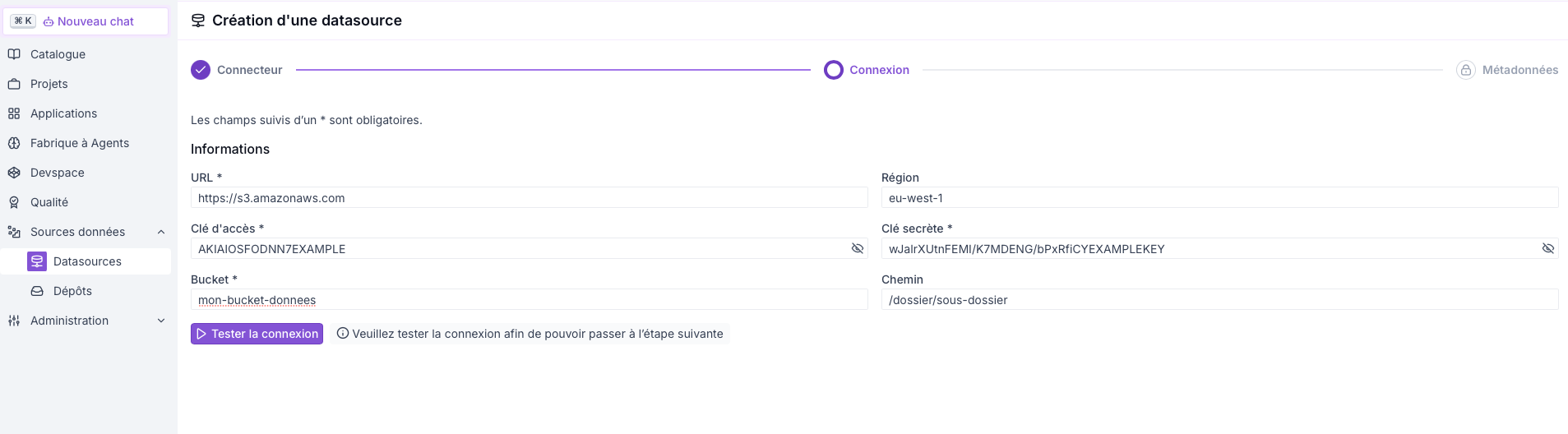
#### ☁️ **S3**

<figure><img src="https://4159280578-files.gitbook.io/~/files/v0/b/gitbook-x-prod.appspot.com/o/spaces%2FMHNFH6aA4j5ucH4XFBXy%2Fuploads%2Fgit-blob-3b16d8b461c65968000fcffc6d314fb663338a30%2Fimage.png?alt=media" alt=""><figcaption></figcaption></figure>

| Field             | Description                | Example                              |
| ----------------- | -------------------------- | ------------------------------------ |
| **URL**           | S3 service endpoint.       | `https://s3.eu-west-1.amazonaws.com` |
| **Region**        | AWS region of the bucket.  | `eu-west-1`                          |
| **Access Key**    | IAM access key.            | `AKIA...`                            |
| **Secret Key**    | Associated secret key.     | —                                    |
| **Bucket**        | Name of the target bucket. | `data-production`                    |
| **Path (prefix)** | Specific subfolder.        | `exports/2025/`                      |

#### Sensitivity inheritance

{% hint style="danger" %}
The **sensitivity choice** is crucial because the children of the Datasource will inherit it.
{% endhint %}

When a Dataset is created from a datasource, it automatically inherits the sensitivity level of its source. When a Dataset is created from multiple datasources, the highest sensitivity level will be taken.

| Datasource sensitivity            | Sensitivity of the created dataset |
| --------------------------------- | ---------------------------------- |
| Internal & Internal               | Internal                           |
| Sensitive & Internal              | Sensitive                          |
| Restricted & Sensitive & Internal | Restricted                         |

### Monitoring and connectivity status

Each datasource has a connectivity status visible in the administration panel:

<table><thead><tr><th width="172.56640625">Status</th><th>Meaning</th></tr></thead><tbody><tr><td>✅ Valid</td><td>The last 5 refreshes completed without error.</td></tr><tr><td>⚠️ To monitor</td><td>One of the last 5 refreshes encountered an error.</td></tr><tr><td>❌ Error</td><td>The last 5 refreshes failed.</td></tr></tbody></table>

***

## Secure SFTP repositories

Repositories rely on an SFTP server whose spaces are **isolated** and made available to **exchange files securely** between the platform and **external** partners (vendors, institutions, customers, etc.).

Each repository corresponds to an independent storage space, accessible via:

* authentication via **SSH key** (recommended) or
* authentication via **password**.

They serve as secure buffer zones (“pot zones”) for depositing or retrieving external files before integration into a dataset.

### Create a repository

Creating a repository is reserved for **Platform Managers** from the Data Sources > Repositories panel.

When creating:

* choose an **explicit** name (e.g. sftp-partner-finance),
* **SSH key** : add one or more public **SSH** keys authorized (Ed25519, ECDSA, RSA or FIDO/hardware key) to secure your repository.

{% hint style="info" %}
Following the **upgrade to version 4.6 and due to the strengthening of security measures**, it is no longer possible to create a new repository with password access. Existing repositories configured with a password remain accessible for now but will no longer be by 31//12/2026. We recommend migrating these repositories to SSH-access repositories as soon as possible.
{% endhint %}

{% hint style="warning" %}
The repository name is **visible to platform users,** avoid confidential information.
{% endhint %}

Afterwards, you will be able to:

* **browse files** : view the list of folders and files from Repository > Explorer
* **edit** the repository: add an SSH key
* **delete** the repository: delete files and access

### Retention period and automatic cleanup

Files deposited in a repository are subject to **automatic cleanup** :

* by default, the retention period is **7 days** after the last file modification,
* this duration is configurable between 1 and 30 days,
* upon expiration, files are deleted, but the folder tree is preserved.

This policy ensures **controlled storage space** while preserving the **logical structure** of the repository.

### Login and use (e.g. FileZilla)

Authorized users can access a repository through any SFTP client (FileZilla, Cyberduck, WinSCP, etc.).

**FileZilla example:**

1. Open File > Site Manager
2. Click New Site
3. Fill in:
   * Protocol: SFTP – SSH File Transfer Protocol
   * Host: (address provided in the repository sheet)
   * Port: 22 (default)
   * User: repository username
   * Authentication method: password or private key
4. Click Quickconnect

{% hint style="info" %}
The exact connection details (host, port, user, SSH key or password) are available in Configuration > Repositories > Management > Repository Sheet.
{% endhint %}

***

## Governance best practices

* Clearly name your **data sources** (SFTP\_Partners\_2025, PostgreSQL\_Prod, etc.).
* Prefer authentication by SSH key or token rather than by password.
* **Revoke** immediately the **unused accesses**.
* Monitor the **connectivity statuses** to avoid recurring ingestion failures.