> For the complete documentation index, see [llms.txt](https://cleyrop.gitbook.io/docs/llms.txt). Markdown versions of documentation pages are available by appending `.md` to page URLs; this page is available as [Markdown](https://cleyrop.gitbook.io/docs/v4.7-en/the-factory/depots-git.md).
# Git Repositories
Host the code for your Apps and Tools on the platform, or connect your existing GitLab repositories to build your images.
A Git repository is the source code for an App or a Tool. The Factory knows two types:
* the **internal repository**, hosted directly on the Cleyrop platform, with no external repository or credentials to configure;
* the **external repository**, an existing GitLab repository, which the platform reads with its deployment key.
A repository can feed several Apps and exists independently of them. Internal repositories are managed from **The Factory**, tab **Git Repositories** ; external repositories are declared when creating an image.
***
## Understanding permissions on an internal repository
| Role | Permissions |
| -------------------- | -------------------------------------------------------------------------------------------------------------------------------- |
| **Repository owner** | Modify, transfer, and delete the repository; edit, import, and delete files; create branches; clone and push from their DevSpace |
| **Other users** | Read-only access to repositories linked to their Apps. The **Platform Managers** see all repositories. |
{% hint style="warning" %}
Being the owner of an App does not grant rights on its repository: it is the **repository owner** that matters. To hand over to a colleague, [transfer the repository to them](#transferer-modifier-ou-supprimer-un-depot).
{% endhint %}
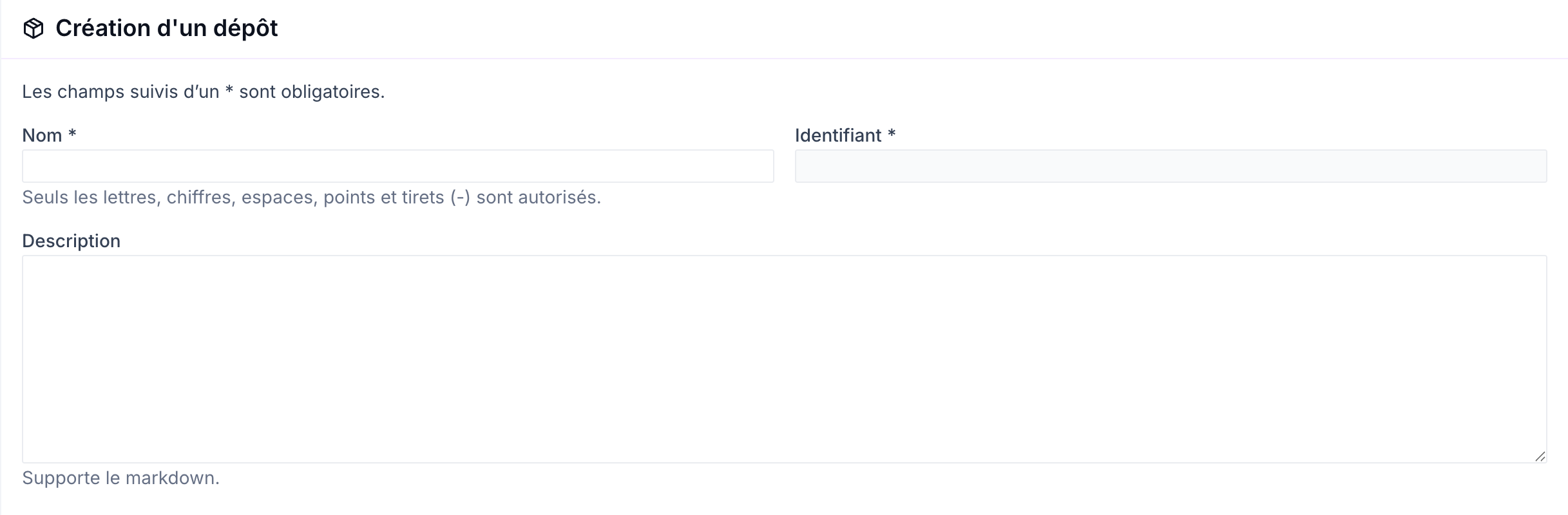
## Create an internal repository
1. Go to **The Factory**, tab **Git Repositories**.
2. Click on **Create a repository**.
3. Fill in the **Name** (letters, numbers, spaces, dots and hyphens, maximum 100 characters). The**Identifier** is generated automatically from the name: it is the repository's technical name, and will never change, even if you rename the repository.
4. Add a **Description** (markdown supported), then click on **Create**.
You are redirected to the repository details page and you are the **owner**. A file `README.md` is created automatically on the `main` branch; it reminds you of the clone commands.
{% hint style="info" %}
The name and identifier are unique on the platform: if either is already taken, the message **This name is already in use** is displayed. Internal repositories are always private.
{% endhint %}
## Explore a repository details page
The header of the page shows the repository name, its **Link** (the clone URL, with a copy button), its **Owner**, the number of**Apps** using it and its creation date. The owner has the actions **Transfer**, **Edit** and **Delete**.
* **Information** : the description, number of branches and linked Apps, with a link to each of them.
* **Files** : the tree of the selected branch, the latest commit and the file contents. A markdown file opens in **Preview** ; the **Code** button shows its source. Office files, PDFs, archives and media cannot be displayed.
## Manage files in a repository
From the tab **Files**, the owner can modify the repository directly from the interface. Each action creates a commit in their name on the selected branch.
**Edit a file**
1. Select the branch, then open the file.
2. Click on **Edit** and change the content. You can also rename the file, in the same folder.
3. Fill in the **Message** of the commit (pre-filled), then click on **Save**.
**Import a file**
1. Go to the branch and the destination folder, then click on **Import**.
2. Select or drag and drop the file: one file per import, **100 MB maximum**.
3. Fill in the **Message** commit, then click on **Send**.
A file with the same name in the same location is rejected: delete or rename the old one before importing.
**Delete a file**
1. Open the file, then click on **Delete**.
2. Enter the file name to confirm, then click on **Delete**.
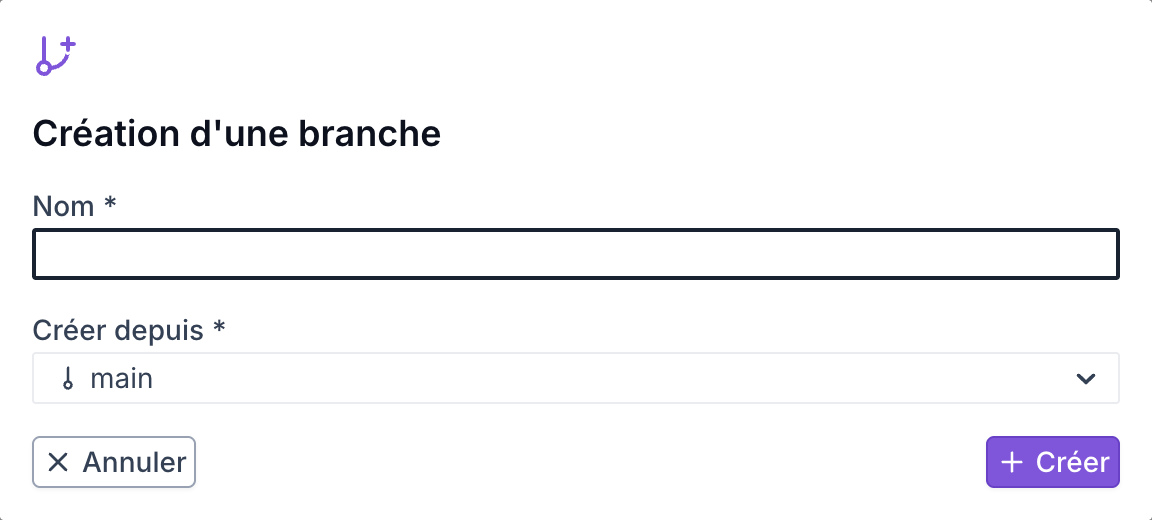
**Create a branch**
1. Click on **Create a branch**.
2. Fill in the **Name** (letters, numbers and characters `_ - . /`) and choose the source branch in **Create from**.
3. Click on **Create** : the new branch is selected.
{% hint style="info" %}
Creating a branch does not affect any existing App. Deleting a branch and creating tags are not available from the interface: do them from your DevSpace.
{% endhint %}
## Work on an internal repository from a DevSpace
For changes larger than a file, clone the repository into your [DevSpace](/docs/v4.7-en/the-factory/devspace.md). No Deploy Key needs to be added: your DevSpace SSH key is automatically registered on the repositories for which you are responsible, and the alias `cleyrop` is preconfigured in the DevSpace.
1. From the repository page, copy the **Link**, in the form `git@cleyrop:.git`.
2. From your DevSpace terminal:
```bash
cd /home/cleyrop/projects
git clone git@cleyrop:.git
cd
# ... modifications, then:
git add . && git commit -m "My modification" && git push origin main
```
{% hint style="warning" %}
Cloning and pushing are reserved for the **repository owner**, from their DevSpace. The SSH key on your device, added in your **Personal Space**, is used to connect to the DevSpace; it does not give access to internal repositories.
{% endhint %}
## Transfer, edit, or delete a repository
These actions are reserved for the repository owner, from the repository list or the repository page.
* **Edit** : change the name or description. The identifier, and therefore the clone URL, remain unchanged.
* **Transfer** : choose the **New owner** from the platform users, then confirm. The transfer is **final** : only the new owner retains the rights, both in the interface and in Git from their DevSpace.
* **Delete** : enter the repository name to confirm. Deletion is **irreversible** and deletes the repository and its history. The Apps that used it remain deployed, but their images can no longer be rebuilt until another repository is associated with them; the repository appears as **(deleted)** in their registry.
{% hint style="info" %}
When an administrator disables a user, they designate a **New owner of apps and Git repositories** : the user's internal repositories are transferred to them.
{% endhint %}
***
## Connect an external repository
An external repository is declared when creating an image, in the **Repository** section of the form (see [Using a repository in an App](#utiliser-un-depot-dans-une-app)). The platform accesses it in **read-only**.
### Private repository (GitLab)
**Prerequisites** : a GitLab repository containing your source code and a Dockerfile.
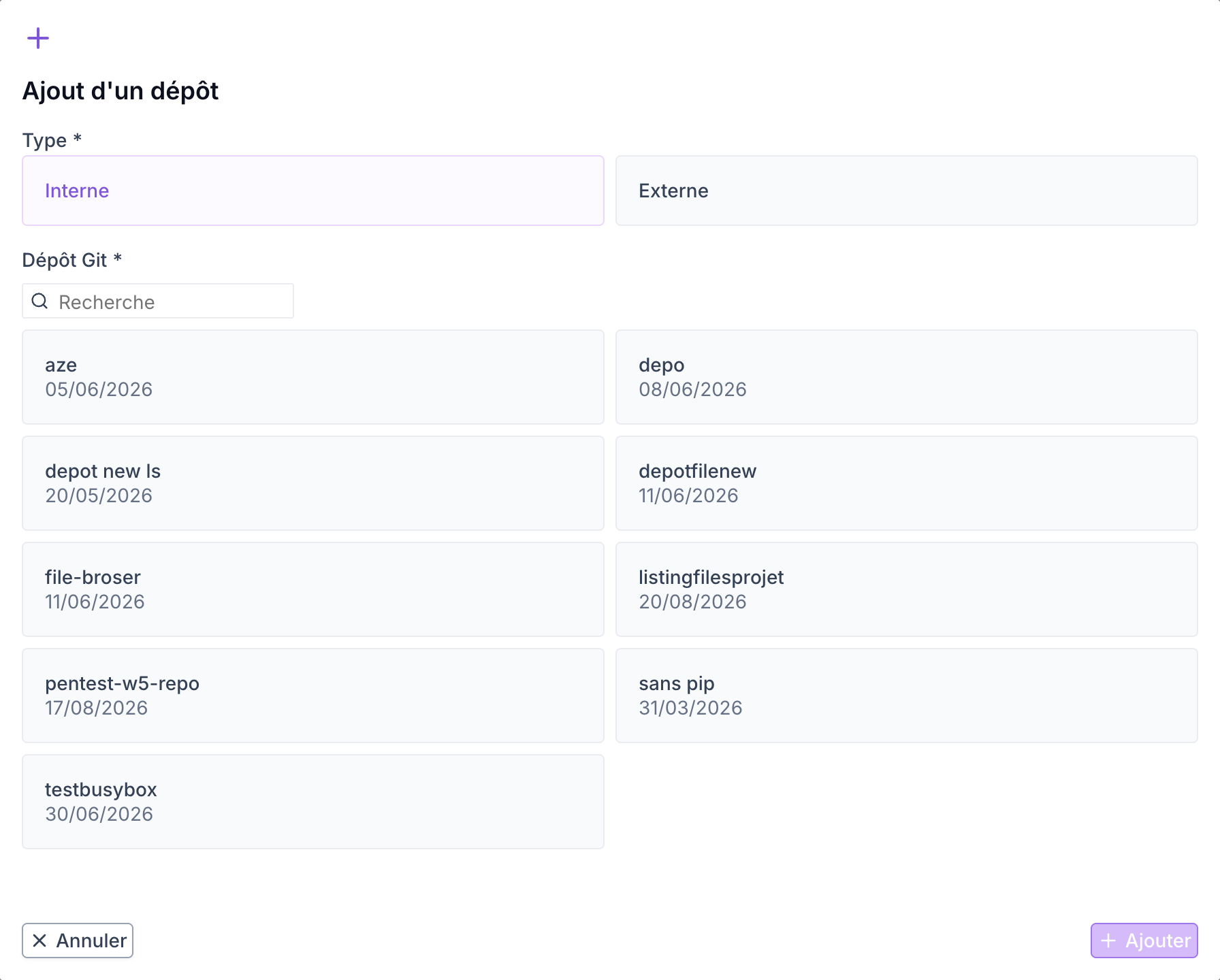
1. Click on **Add**, then choose the type **External**.
2. Enter the**SSH URL** of the repository (e.g. `git@gitlab.com:mon-org/mon-repo.git`). The connection is tested automatically.
3. Follow the guide shown under the field: in GitLab, open **Settings > Repository > Deploy Keys**, click **Add new key**, name the key, then paste the Cleyrop public key obtained with the button **Copy SSH key**.
4. Click on **Test connection**. If the test succeeds, click on **Add**.
{% hint style="info" %}
If GitLab shows "Fingerprint sha256 has already been taken", the Cleyrop key is already known to your GitLab instance: find it in **Privately accessible deploy keys** and activate it on your repository.
The Cleyrop public key can also be consulted at any time from the user menu, entry **SSH Keys**, section **SSH Key - The Factory**.
{% endhint %}
### Public repository
No Deploy Key is needed.
1. Click on **Add**, then choose the type **External**.
2. Enter the**HTTPS URL** of the repository (e.g. `https://gitlab.com/mon-org/mon-repo.git`).
3. If the connection test succeeds, click on **Add**.
### Error handling
| Error | Cause | Solution |
| ------------------------------------------ | ---------------------------- | ----------------------------------------------------------- |
| "We were unable to access your repository" | SSH key not added or invalid | Check that the Deploy Key is correctly configured in GitLab |
| "This format is not accepted" | Malformed URL | Use an SSH URL (`git@…`) or a full HTTPS URL |
| "This repository contains no tag" | Git repository without tags | Create at least one tag or use a branch |
***
## Using a repository in an App
An internal or external repository serves as the build source for the images of an App or a Tool.
1. From your App details page, open the tab **Internal Registry** and click on **Create an image**.
2. In the **Repository**, select a repository already linked to the App, or click on **Add** :
* type **Internal** : choose a repository from the list. Only repositories for which you are responsible are offered; the **Create a repository** button lets you create a new one.
* type **External** : declare the repository as described above.
3. Continue configuring the image (Dockerfile, branch or tag, version): see [Manage images](/docs/v4.7-en/the-factory/gerer-les-images.md#creer-et-builder-une-image).
The same repository can be linked to several Apps. The **Linked Git Repositories** tab of an App details page lists the repositories used as the source of its images.
***
## Best practices
* Reserve online editing for small fixes; for ongoing development, work from your DevSpace.
* Keep `main` stable: develop on a dedicated branch and use Git tags for production images.
* Transfer your repositories before leaving a project, so that the Apps that depend on them remain rebuildable.