> For the complete documentation index, see [llms.txt](https://cleyrop.gitbook.io/docs/llms.txt). Markdown versions of documentation pages are available by appending `.md` to page URLs; this page is available as [Markdown](https://cleyrop.gitbook.io/docs/v4.7-en/the-factory/devspace.md).

# DevSpace

Your personal, isolated, and persistent development environment, accessible from your IDE.

## Understanding DevSpace

DevSpace is a personal development environment hosted on the Cleyrop platform. It gives you an isolated, standardized, and persistent workspace, accessible from anywhere via SSH.

Designed for developers, DevSpace solves common issues related to local environments: heterogeneous configurations, difficulty reproducing bugs, and impossible access to Cleyrop internal resources.

### What is a DevSpace?

A DevSpace is an Ubuntu 24.04 container provisioned on demand. Each user has a single personal DevSpace with the following characteristics

* Controlled resources: choose the CPU/RAM pair and storage size when creating it
* Persistent storage: your files in /home/cleyrop are kept between stops and restarts.
* SSH access: connect from your favorite IDE (VS Code, IntelliJ, PyCharm).
* Access to Cleyrop resources: secure connection to Apps, Datasets, AI Gen Proxy, Corpus and Work Data
* Lifecycle management: start, stop, and delete on demand.

{% hint style="warning" %}
Regarding persistent storage:

* At present, it is not possible to scale up the storage of your DevSpace.
* Only the /home/cleyrop folder is persistent. Any file stored elsewhere will be lost when the DevSpace stops.
  {% endhint %}

## Manage your DevSpace

### Create your DevSpace

Provision your personal development environment in just a few clicks.

1. Click DevSpace in the main navigation menu
2. If you do not already have a DevSpace, click <i class="fa-gear">:gear:</i> Configure
3. Check your **SSH key from your device** : the system automatically checks whether a key is configured in your profile. If not, click "Add a key" and follow the tutorial.
4. Choose the **resources** : select a CPU/RAM pair from the available options or enter custom values
5. Set the **storage** : choose the size of the persistent volume. This value cannot be changed later.
6. Select the **accessible Apps** (optional): by default, no app is accessible. Use the search bar and filters to select the Apps you need.
7. Click Configure. DevSpace provisioning usually takes a few seconds. The status changes from "Starting" to "Running" when the environment is ready.

{% hint style="info" %}
✓ Use Ed25519 keys for optimal security.

✓ Configure the \~/.ssh/config file to avoid retyping the settings on each connection.

✓ Never share your private key

✓ Manage the SSH keys authorized to access your DevSpace from your Personal Space > SSH Key
{% endhint %}

{% hint style="success" %}
Size resources according to your actual needs to avoid overloading the cluster.
{% endhint %}

<figure><img src="https://4159280578-files.gitbook.io/~/files/v0/b/gitbook-x-prod.appspot.com/o/spaces%2FMHNFH6aA4j5ucH4XFBXy%2Fuploads%2Fgit-blob-9317da508d001ecc58a91c8956c413c981879946%2Fimage.png?alt=media" alt=""><figcaption></figcaption></figure>

### Manage app access

Configure the apps your DevSpace can connect to at the network level.

By default, your DevSpace has access to no app. You must explicitly select the apps you need to follow the principle of least network privilege. This configuration can be changed at any time, even while the DevSpace is running.

From the Apps tab of your DevSpace, you can add or remove the apps you want to access from your DevSpace.

<figure><img src="https://4159280578-files.gitbook.io/~/files/v0/b/gitbook-x-prod.appspot.com/o/spaces%2FMHNFH6aA4j5ucH4XFBXy%2Fuploads%2Fgit-blob-592ebbc39baf7210ec3b5961902e4e8187062b4d%2Fimage.png?alt=media" alt=""><figcaption></figcaption></figure>

### Manage used resources

Monitor your environment's status to optimize resource usage.

You can start, stop, or modify your DevSpace's resources at any time. Stopping releases CPU and RAM resources while keeping your data in persistent storage.

#### Adjust resources

From the detail page, click <i class="fa-gear">:gear:</i> to modify CPU/RAM resources. Validating the change requires an automatic redeployment of the DevSpace.

#### Start the DevSpace

From your DevSpace detail page, click <i class="fa-play">:play:</i>

* The status changes to "Starting" then "Running" after a few seconds.

If you encounter a problem, you can view the logs from your DevSpace details page by clicking the Log button.

#### Stop the DevSpace

From your DevSpace detail page, click <i class="fa-stop">:stop:</i>

{% hint style="warning" %}
Make sure you have saved your work before stopping. Files outside /home/cleyrop will be lost.
{% endhint %}

After a stop/start cycle, you keep:

* All your files in /home/cleyrop
* Your Python packages installed with UV
* Your user settings (.bashrc, .gitconfig, etc.)
* Your cloned Git repositories
* Your bash command history

#### Delete the DevSpace

Deleting your DevSpace is irreversible and permanently destroys all your data, including data stored in /home/cleyrop.

1. From your DevSpace detail page, click **Delete**
2. Confirm deletion

{% hint style="warning" %}
Back up all your files before deleting your DevSpace. This action is irreversible.
{% endhint %}

## Use your DevSpace

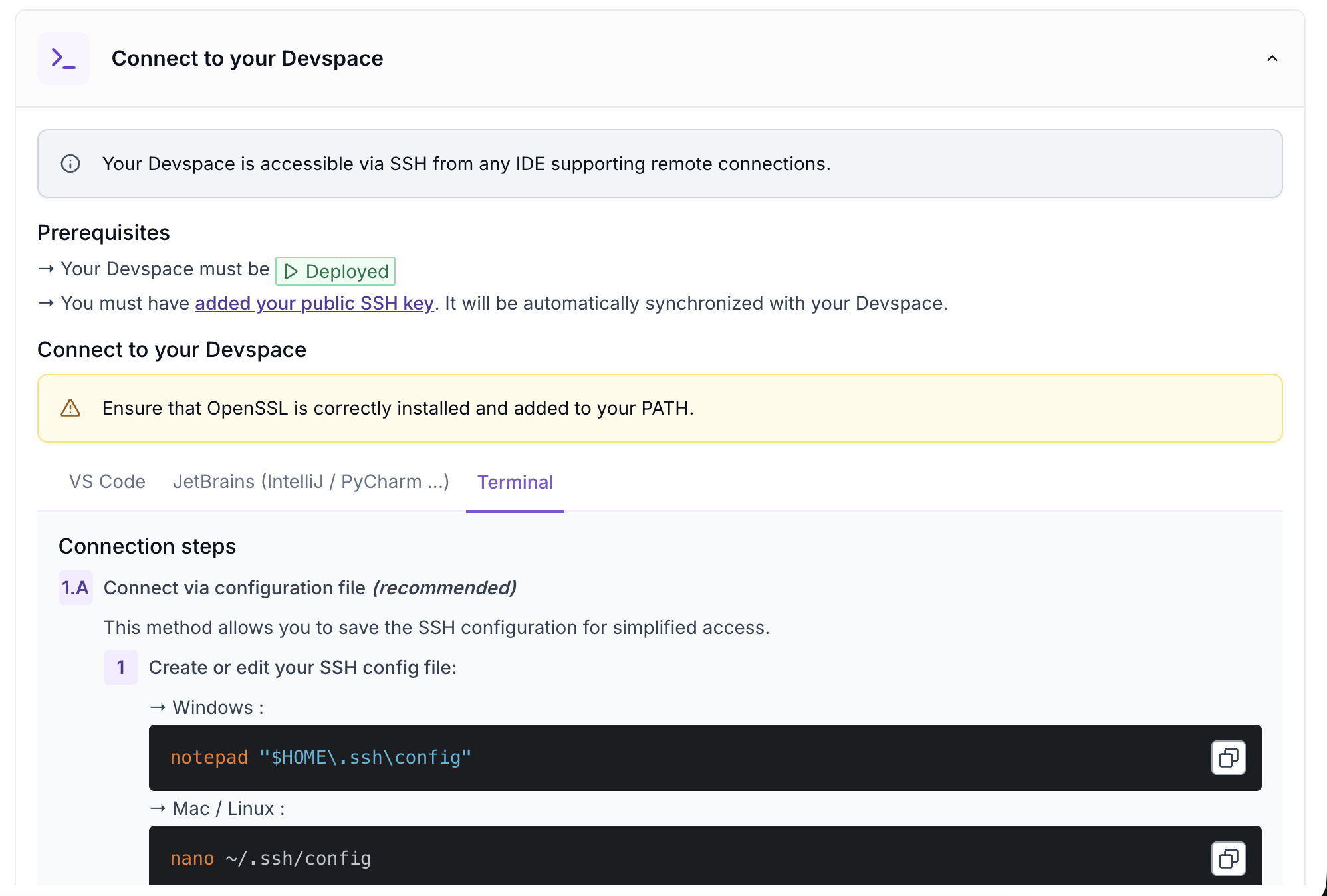
Your DevSpace is accessible via SSH from all IDEs that support remote connections. You will find all usage guides and tutorials directly from the DevSpace details page.

### Connect to an IDE

You can connect to **VS Code IDE**, **JetBrains** or a **Terminal** by creating a secure SSH tunnel. Follow the steps to configure and launch the SSH connection.

<figure><img src="https://4159280578-files.gitbook.io/~/files/v0/b/gitbook-x-prod.appspot.com/o/spaces%2FMHNFH6aA4j5ucH4XFBXy%2Fuploads%2Fgit-blob-0afd9ebaec062315267fb737b92f8c63b6c88153%2Fimage.png?alt=media" alt=""><figcaption></figcaption></figure>

### Troubleshoot SSH connection issues

If the connection to your DevSpace is unstable or drops frequently, replace the `ProxyCommand` in `~/.ssh/config` with the following command using `socat` :

```bash
ProxyCommand socat - OPENSSL:%h:%p,verify=0
```

Complete example block in `~/.ssh/config` :

```bash
Host cleyrop-devspace
  HostName <your-devspace-hostname>
  User cleyrop
  Port 2222
  IdentityFile <path-to-your-private-key>
  ProxyCommand socat - OPENSSL:%h:%p,verify=0
  # optional, improves stability
  ServerAliveInterval 15
  ServerAliveCountMax 3
  TCPKeepAlive yes
```

To test directly from the command line without modifying the configuration file:

```bash
ssh -p 2222 -o ProxyCommand="socat - OPENSSL:%h:%p,verify=0" cleyrop@<your-devspace-hostname>
```

**On macOS with LibreSSL**

On macOS, `openssl` points by default to LibreSSL, which does not support `-ign_eof` and causes TLS interruptions about every 2 minutes. Install OpenSSL via Homebrew and use:

```bash
ProxyCommand openssl s_client -quiet -ign_eof -connect %h:%p -servername %h
```

### Manage Python packages with UV

Install and manage your Python dependencies with UV, the built-in package manager.

Your DevSpace includes UV, a modern and high-performance Python package manager. All packages installed in /home/cleyrop are persistent.

#### Create a virtual environment (recommended)

1. Create a folder for your project:

   `cd /home/cleyrop/projects/my-project`
2. Create the virtual environment:\
   `uv venv`
3. Activate the environment:\
   `source .venv/bin/activate`.\
   The prompt shows (.venv) to confirm activation.

#### Manage packages

You will find your packages:

* With virtual environment: /home/cleyrop/projects/my-project/.venv/ (project-isolated)
* Without virtual environment: /home/cleyrop/.local/ (global)

Both locations persist between DevSpace restarts.

**Common UV commands**

<table><thead><tr><th valign="top">Action</th><th valign="top">Command</th></tr></thead><tbody><tr><td valign="top">Install packages</td><td valign="top">uv pip install pandas numpy</td></tr><tr><td valign="top">Install from requirements.txt</td><td valign="top">uv pip install -r requirements.txt</td></tr><tr><td valign="top">List installed packages</td><td valign="top">uv pip list</td></tr><tr><td valign="top">Update a package</td><td valign="top">uv pip install --upgrade pandas</td></tr><tr><td valign="top">Generate requirements.txt</td><td valign="top">uv pip freeze > requirements.txt</td></tr></tbody></table>

{% hint style="success" %}
✓ Always create a virtual environment per project.

✓ Keep an up-to-date requirements.txt file for each project.

✓ Add .venv/ to .gitignore (never version the environment).

✓ Never use sudo (you do not have root privileges).
{% endhint %}

### Clone Git repositories

To clone private repositories, you must add your DevSpace's public SSH key as a Deploy Key on your repositories. Each DevSpace has its own key.

#### Retrieve the DevSpace public key

In the Information tab of your DevSpace, click Copy SSH key.

#### Add the Deploy Key on GitHub/GitLab

1. Go to your repository.
2. Go to Settings > Deploy keys > Add deploy key.
3. Paste the DevSpace public key.
4. Check *Allow write access* if you want to be able to push.
5. Save.

#### Clone the repository

```bash
# Create the working folder
mkdir -p /home/cleyrop/projects
cd /home/cleyrop/projects
 
# Clone from GitHub
git clone git@github.com:<username>/<repo>.git
 
# Clone from GitLab
git clone git@gitlab.com:<username>/<repo>.git
```

#### Clone an internal Git repository from The Factory

Repositories created in **The Factory > Git Repositories** can be cloned from your DevSpace without a Deploy Key: the DevSpace SSH key is automatically registered and the alias `cleyrop` is preconfigured. Copy the **Link** displayed in the repository details, in the form `git@cleyrop:<identifier>.git`, then:

```bash
cd /home/cleyrop/projects
git clone git@cleyrop:<identifier>.git
```

{% hint style="warning" %}
Cloning and pushing are reserved for the **repository owner**. Access rules, responsibility transfer, and file management are described in [Git Repositories](/docs/v4.7-en/the-factory/depots-git.md#travailler-sur-un-depot-interne-depuis-un-devspace).
{% endhint %}

### Access Cleyrop resources

Your DevSpace can access the internal resources of the Cleyrop platform, provided appropriate access has been configured.

#### Available resources

• AI Gen Proxy: access to generative AI models via the py-ai-cleyrop SDK

• Datasets: read and write data (via the datasets API)

• Apps: depending on your configuration.

#### Technical documentation

To use the library in your Python code, refer to the PyAI Cleyrop documentation, which details the most up-to-date access methods.

***

## Best practices

* Stop your DevSpace when you're not using it to free up cluster resources
* Store all your work in /home/cleyrop to ensure persistence.
* Only allow the apps you actually need (principle of least privilege).
* Always create one virtual environment per project and keep an up-to-date requirements.txt file for each project.
